PLAYER GUIDE / RETRODECK LIVE PS2
How to play on ps2.zooshan.com
RetroDeck Live PS2 runs one PlayStation 2 console (PCSX2) on our server and streams it to your browser. You bring your own game disc image and BIOS; a friend opens a link and takes the second controller. Nothing is installed on either computer. This page walks through every step, from getting a key to saving your game.
The host (Player 1)
Needs a hosting key, a game disc image and a PS2 BIOS file. Creates the room, powers on the console and sends the invitation.
The guest (Player 2)
Needs only the invitation link and a browser. The first person to open it gets the second controller.
Viewers
Later visitors on the same link watch a silent picture and can queue for the next turn, when the host allows it.
- Get a 24-hour key
- Unlock hosting
- Create a room
- Upload disc + BIOS, or pick them from your library
- Power on
- Invite Player 2
- Friend joins
- Play, talk, pass the controller
- Download your save
- End the session
- Before you start
- Get a hosting key
- Unlock hosting and create a room
- Load your game
- Power on and read the screen
- Controls: keyboard, gamepad, touch
- Invite Player 2
- Joining as a guest
- Passing the controller
- Game sound and voice chat
- Save states and recordings
- Ending the session and limits
- Tournaments
- Troubleshooting
1. Before you start
- A current browser. Chrome, Edge, Firefox or Safari on a computer, or Chrome or Safari on a phone or tablet. The fast connection uses WebRTC; if it cannot connect, the site falls back to streaming over HTTPS automatically.
- Your own game files (host only). A PS2 disc image of a game you are entitled to use, plus your own PlayStation 2 BIOS dump (a 4 MB
.bin, or a ZIP holding the BIOS set). The site does not include any games or BIOS files, and it never makes your uploads available to anyone else. - A hosting key (host only). A free 24-hour day pass, generated in a minute (next section). Guests do not need a key.
- A controller, if you like. Keyboard works out of the box. USB and Bluetooth gamepads are picked up by the browser. On a phone, on-screen touch controls are built in.
- A decent connection. Wired or good Wi-Fi is noticeably better than mobile data. The game runs on the server, so what you feel is your own network round trip.
2. Get a hosting key
2.1Generate a 24-hour day pass
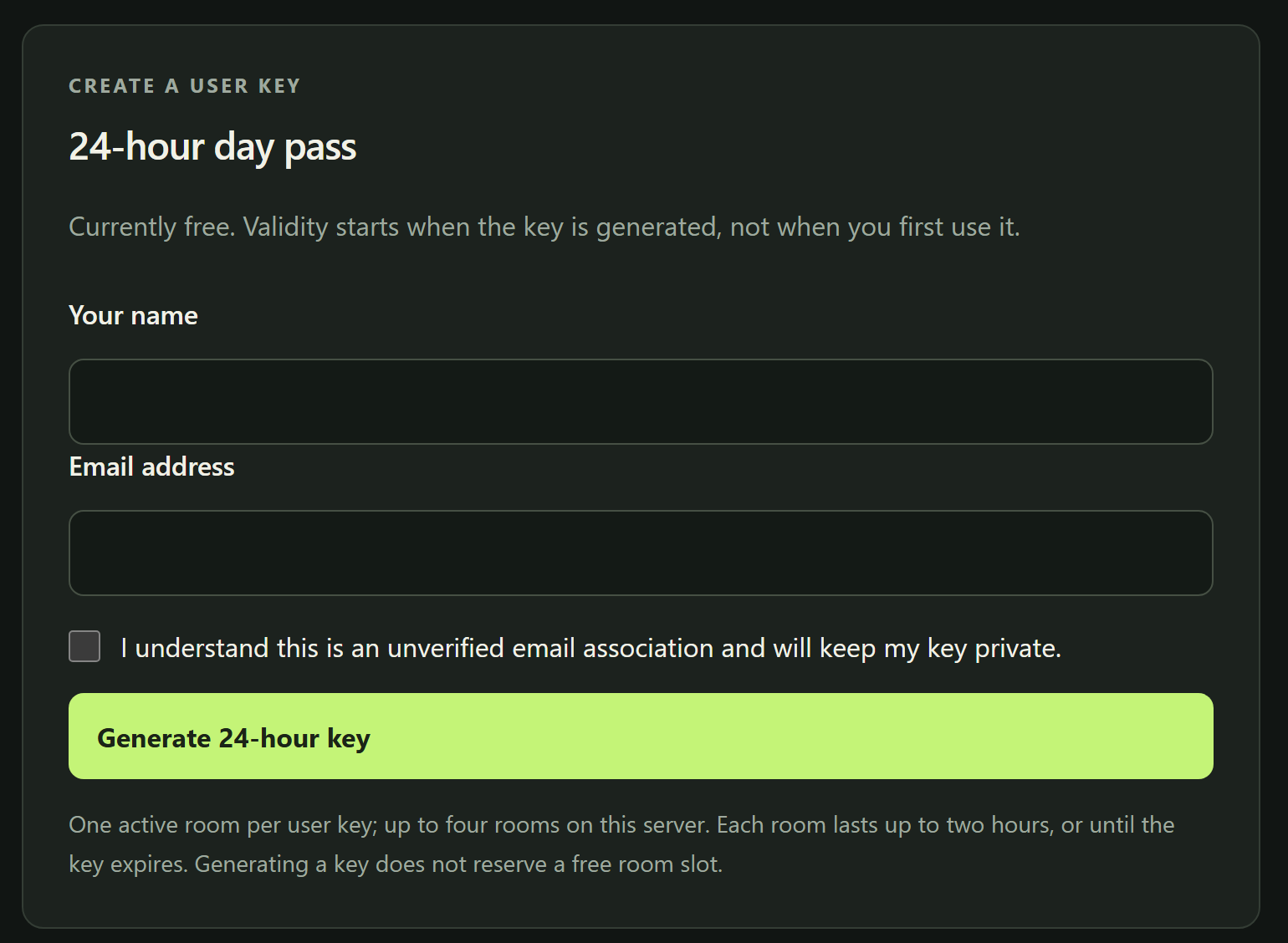
Open ps2.zooshan.com/keys. Under 24-hour day pass, enter your name and email address, tick the box, and press Generate 24-hour key.
- The key is shown once. Copy it and keep it somewhere safe; the server stores only a hash and cannot show it again.
- Validity is 24 hours from the moment you generate it, not from first use.
- Your email is not verified and is not a login; it just has to match when you unlock hosting.
- Day passes are currently free. No payment details are asked for.
/keys/. Generate the key, copy it, keep it private.3. Unlock hosting and create a room
3.1Unlock hosting on the home page
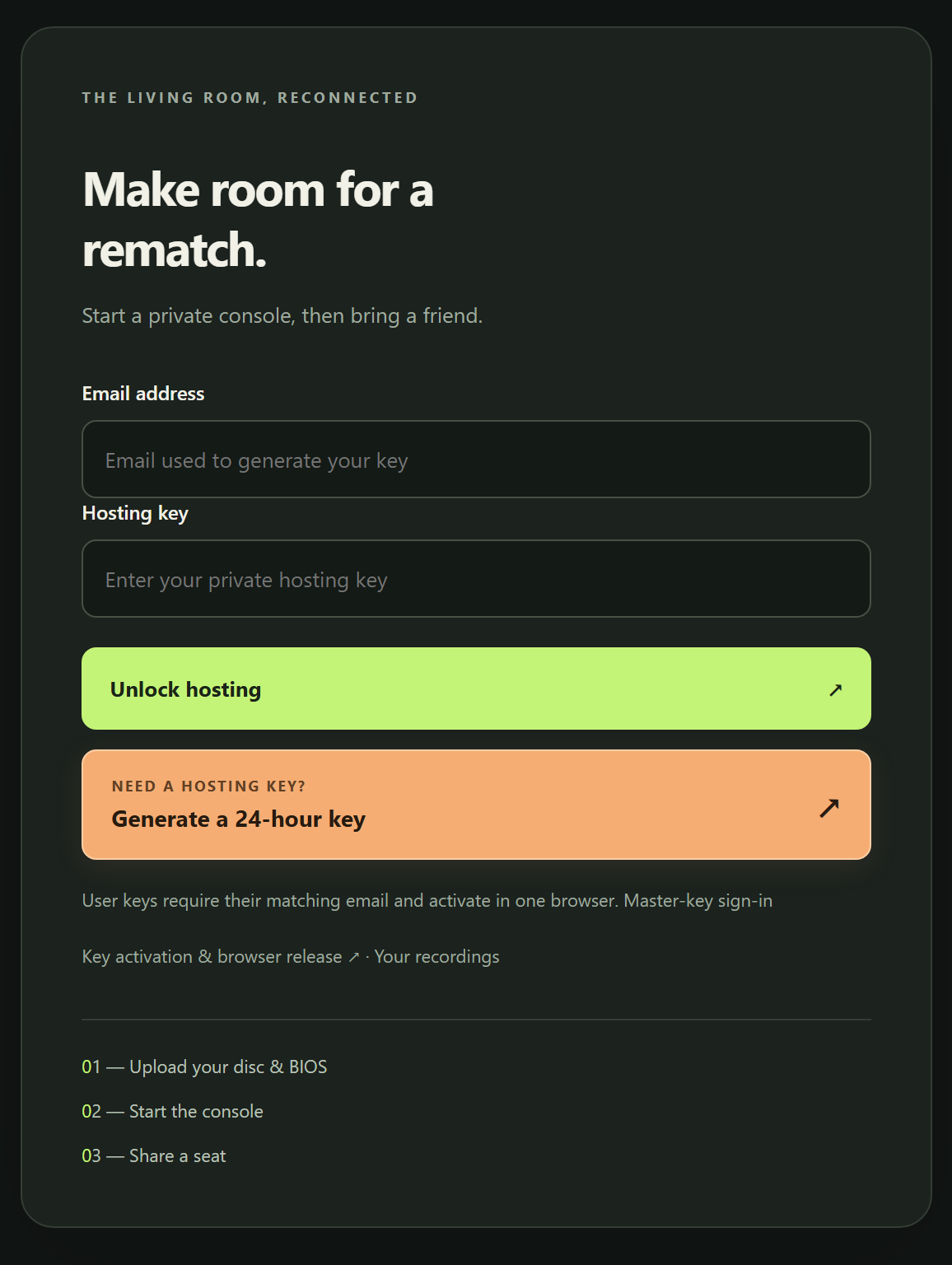
Go to ps2.zooshan.com. In the Make room for a rematch card, enter the email you used and your hosting key, then press Unlock hosting.
You can also unlock from the Hosting keys page with Activate & open rooms; it does the same thing.
3.2Create a room
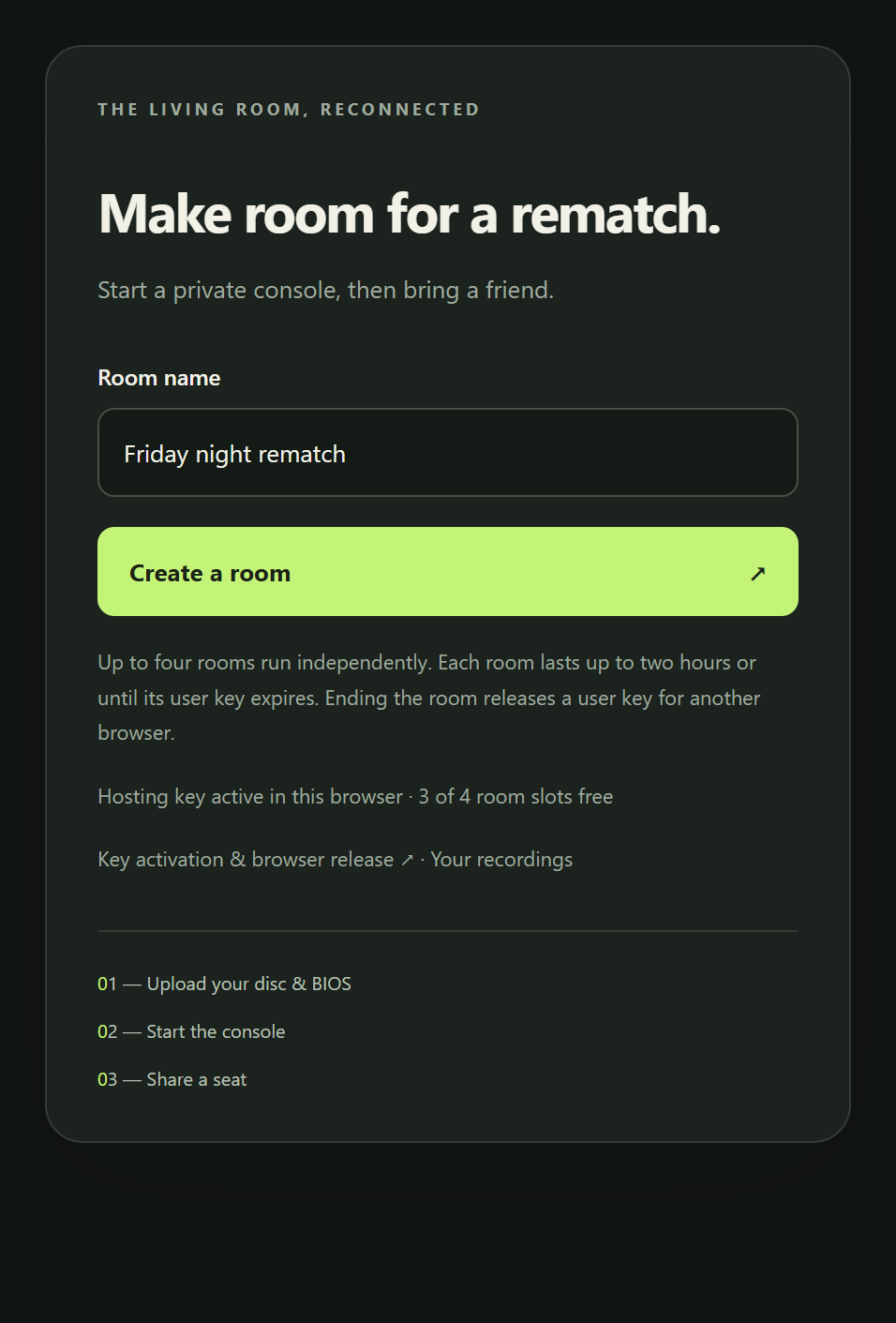
After unlocking, the card changes to Create a room. Give the room a name and press the button. The room page opens with the console on standby.
- This server runs one PS2 room at a time, because PCSX2 needs most of it. The home page shows whether the slot is free; if it is taken, wait for that room to end.
- Each room lasts up to two hours, or until the key that opened it expires.
- One active room per day pass.
4. Load your game
4.1Choose the disc image and the BIOS
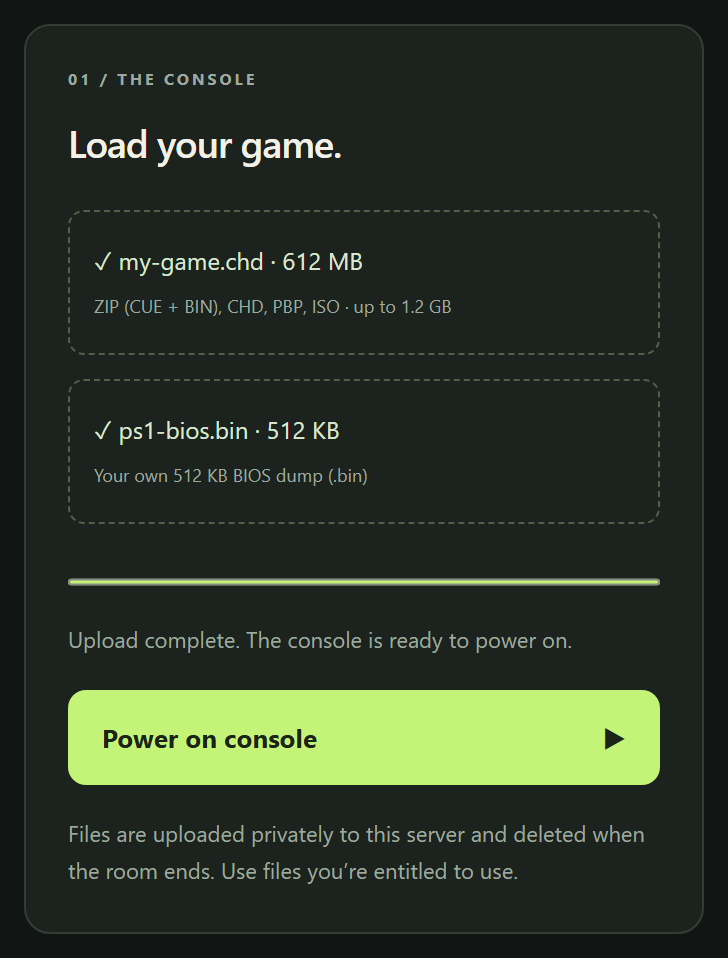
In the 01 / The console panel, press Choose a game disc and pick your disc image, then Choose a PS2 BIOS and pick your BIOS dump. Uploading starts at once; the bar shows progress and the status line says when the console is ready.
| Disc format | What to upload |
|---|---|
| ISO | The single .iso file. Most DVD games are one ISO. |
| CHD | The single .chd file. Recommended: compressed and complete. |
| CSO / ZSO / GZ | The single compressed image file. |
| CUE + BIN | CD-based games: one ZIP containing the .cue and every .bin track it lists. Do not upload the CUE on its own. |
| BIN / IMG | The single image file, if the game is a one-track dump. |
| ELF | A homebrew executable. |
- Limits: one disc up to 4.7 GB, at most 128 files inside a ZIP. Nested archives, links and unexpected file types are refused. Large discs take a while to upload; keep the tab open.
- Keep the tab open while the upload runs.
- Uploads are private. Without a library passphrase they are deleted when the room ends; with one, they stay in your library (next step). Nobody, including the other player, can download them.
4.2Keep your files for next time: your library
The Your library panel under the upload panel keeps discs and BIOS files with your hosting key’s email, so the next room can use them without another upload.
- Press Keep my uploads and choose a library passphrase (at least 8 characters). Everything you upload from then on is kept.
- Next time, generate a day pass with the same email, open a room, enter the passphrase under Unlock library, and press Use beside the disc and the BIOS. Power on as usual.
- The passphrase is separate from the hosting key and cannot be recovered; without it a new key cannot open the library. The master key needs no passphrase.
- Each library holds up to 12 items and 8 GB. Files unused for 45 days are removed. Remove anything you no longer need with Delete.
- Library files are attached to your console read-only and are never downloadable, by you or anyone else.
5. Power on and read the screen
5.1Press Power on console
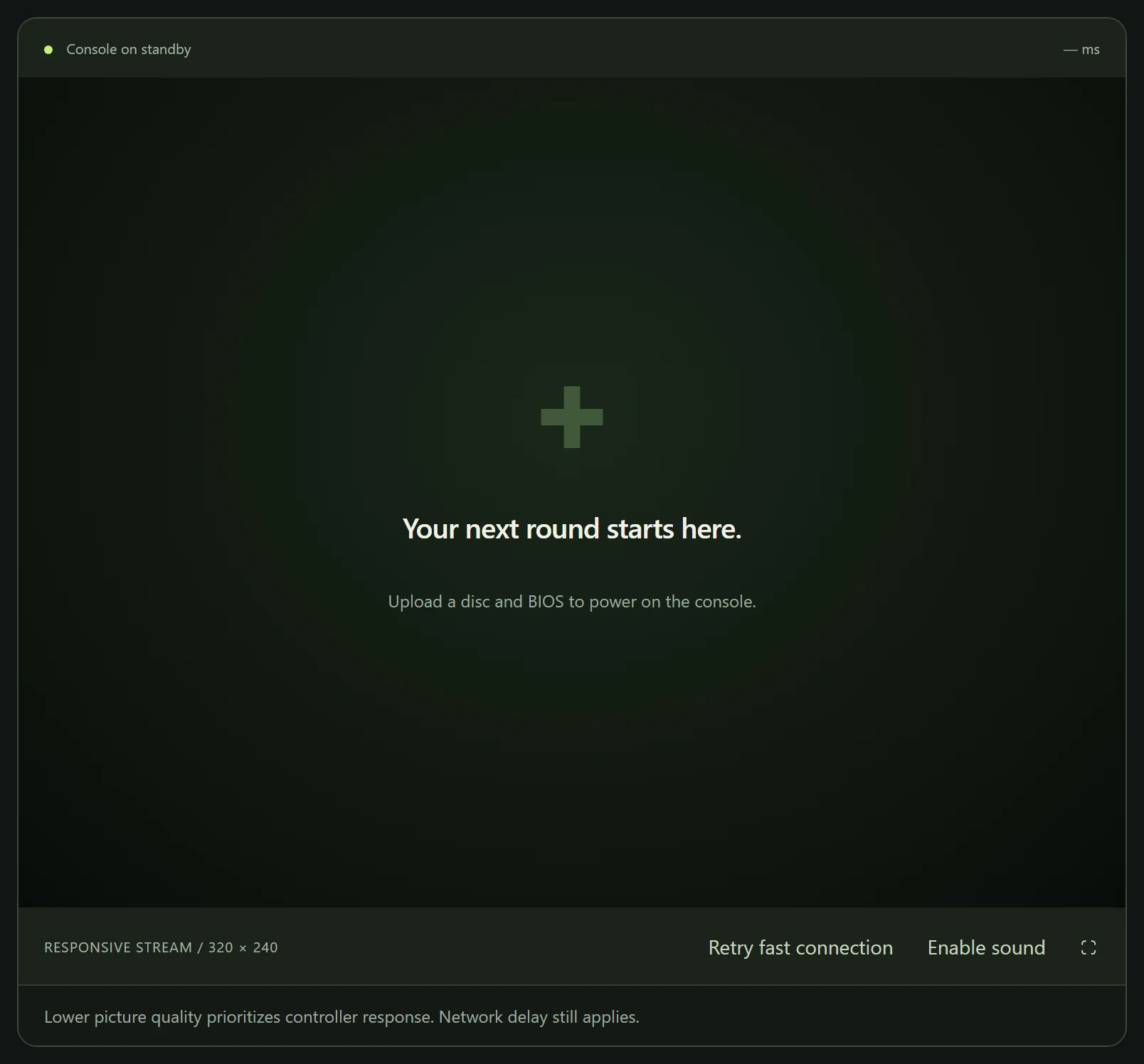
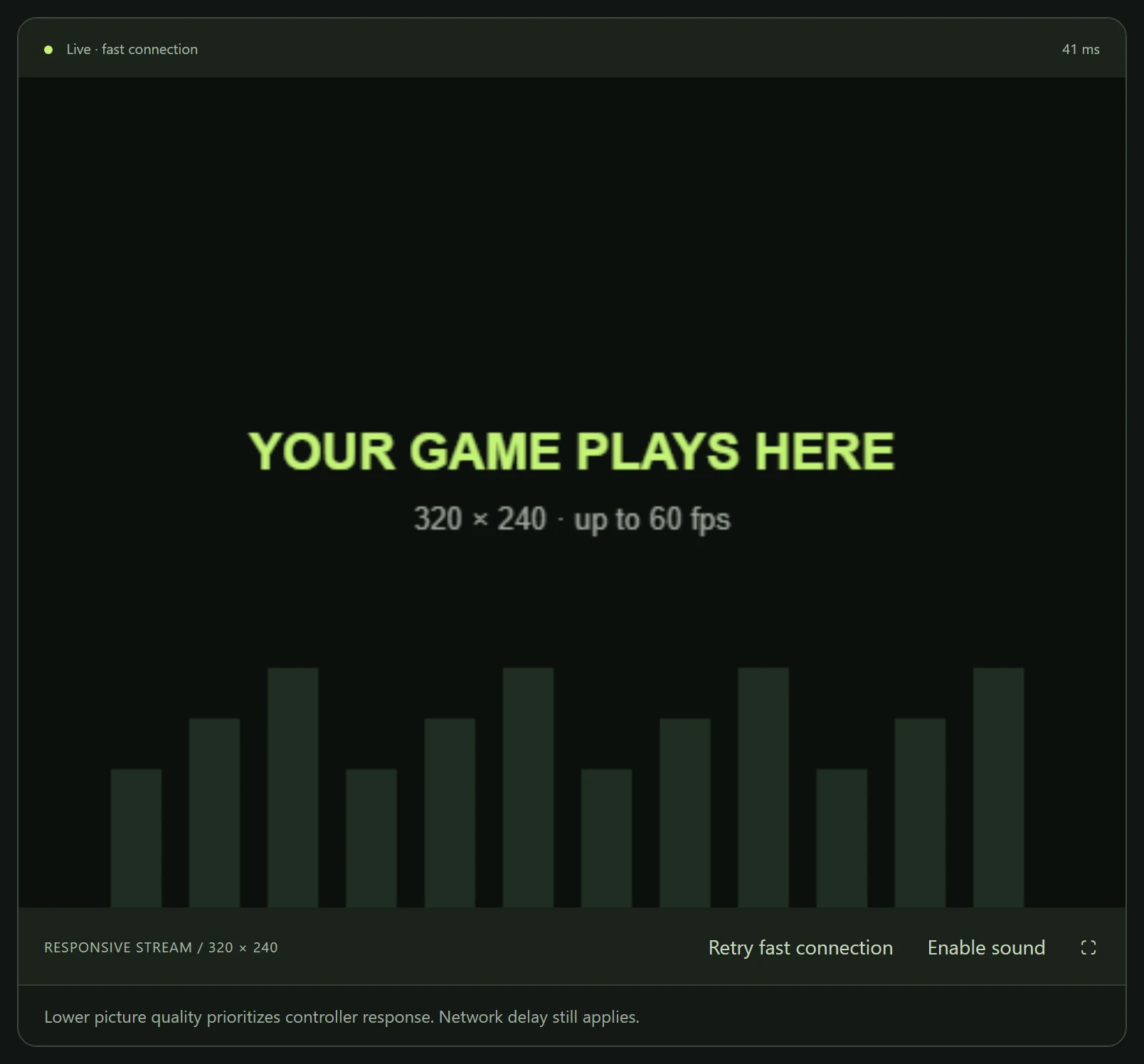
Press Power on console. The emulator starts on the server and the picture appears within a few seconds. With fast boot on (the default) the game starts straight from the disc; PCSX2’s speed and frame counters sit in the corner of the picture.
- Status line. The dot and text at the top-left say whether you are on the fast (WebRTC) connection or the HTTPS fallback. The fallback works everywhere but is slower; press Retry fast connection if you land on it.
- Picture. The default stream is 480 × 360 at up to 60 frames per second (the host can choose 320 × 240 or 640 × 480). It is chosen for controller response, not sharpness.
- Sound is off by default. Press Enable sound when you want it. Each player decides independently.
- Fullscreen. The ⛶ button fills the screen; press Esc to leave.
6. Controls: keyboard, gamepad, touch
6.1Keyboard
Click the game picture once so it has focus, then use these keys. The same map is printed under the screen in the Your controller card.
- Move↑ ↓ ← →
- × (Cross)Z
- ○ (Circle)X
- □ (Square)A
- △ (Triangle)S
- StartEnter
- SelectShift
- L1 / R1Q W
- L2 / R21 2
- L3 / R33 4
- Left stickI J K L
- Right stickT F G H
6.2Gamepad
Plug in a USB controller or pair a Bluetooth one with your computer or phone, then press any button on it. The Your controller card changes from “Keyboard ready” to the gamepad's name. Standard layouts (PlayStation, Xbox, most generic pads) map to the PS2 buttons automatically; both analog sticks work as digital directions.

6.3Touch controls on a phone or tablet
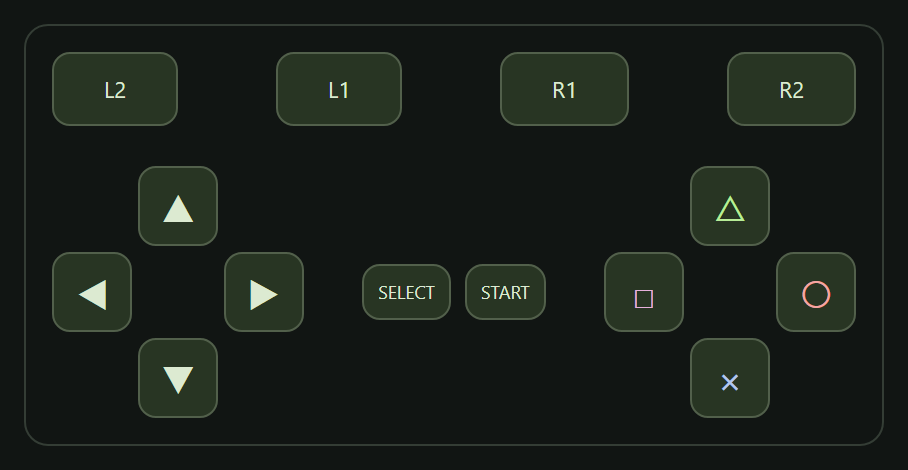
Press Touch controls in the controller card. A full pad appears under the picture: shoulder buttons, D-pad, Select, Start, L3 and R3, and the four face buttons. The sticks are keyboard or gamepad only. Turn the phone sideways for a bigger picture, and use fullscreen.
Only you see your touch pad. It sends the same inputs as a physical controller.
7. Invite Player 2
7.1Create the invitation link
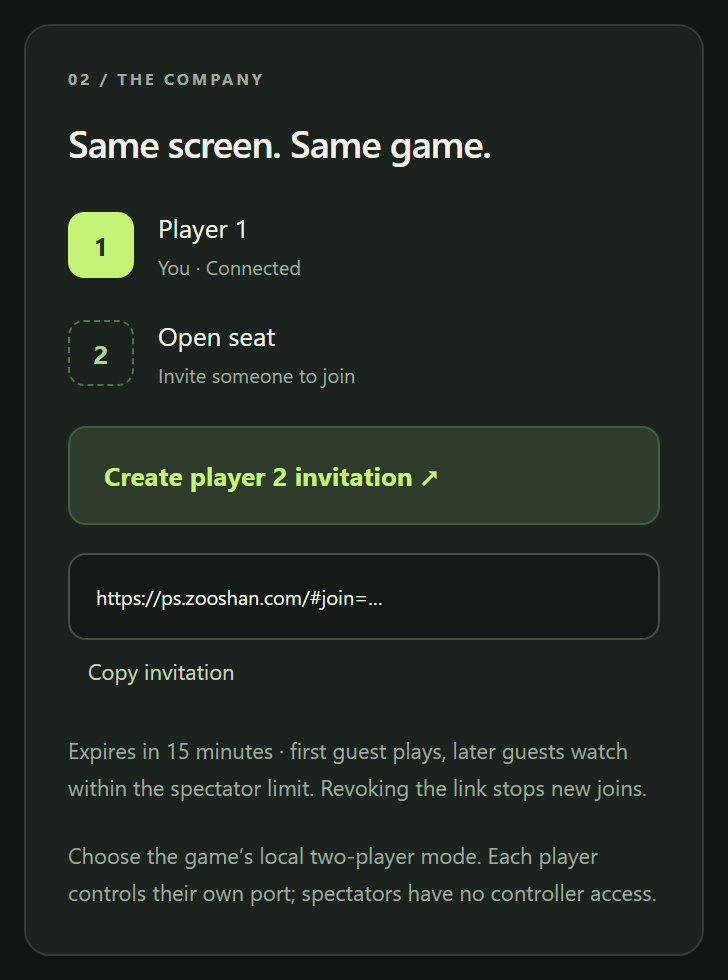
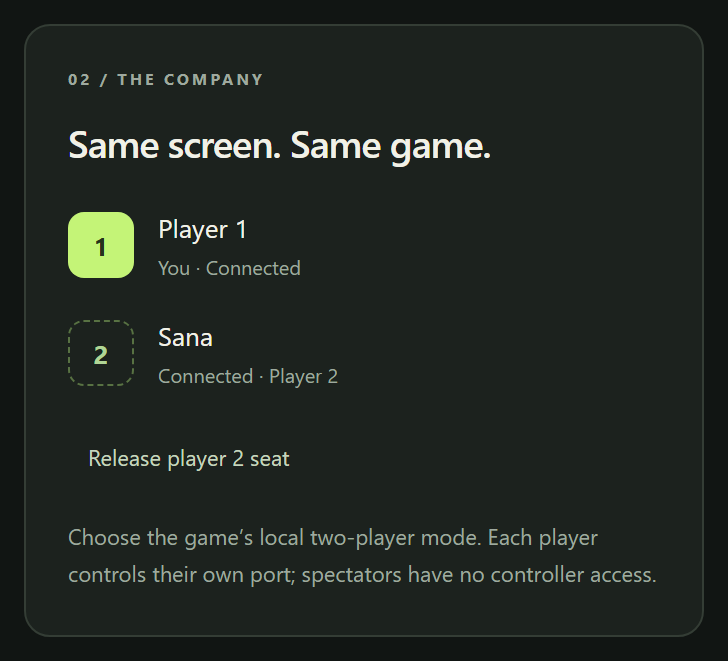
In the 02 / The company panel, press Create player 2 invitation. A link appears; press Copy invitation and send it to your friend over any chat you like.
- The link expires after 15 minutes. Create a new one if it runs out; you can also revoke it.
- The first person to open it gets the Player 2 controller. Anyone after that watches, up to the viewer limit you allow.
- The link is private to your room. Only share it with people you want in the room.
7.2Start the game's two-player mode
When your friend joins, their name appears as Player 2. In the game, choose its own local two-player or VS mode: Player 1 is controller port 1, Player 2 is port 2, exactly as on the real console.
If you want to give the seat to someone else, press Release player 2 seat; the controller goes to the next eligible person in the queue.
8. Joining as a guest
8.1Open the link and enter a name
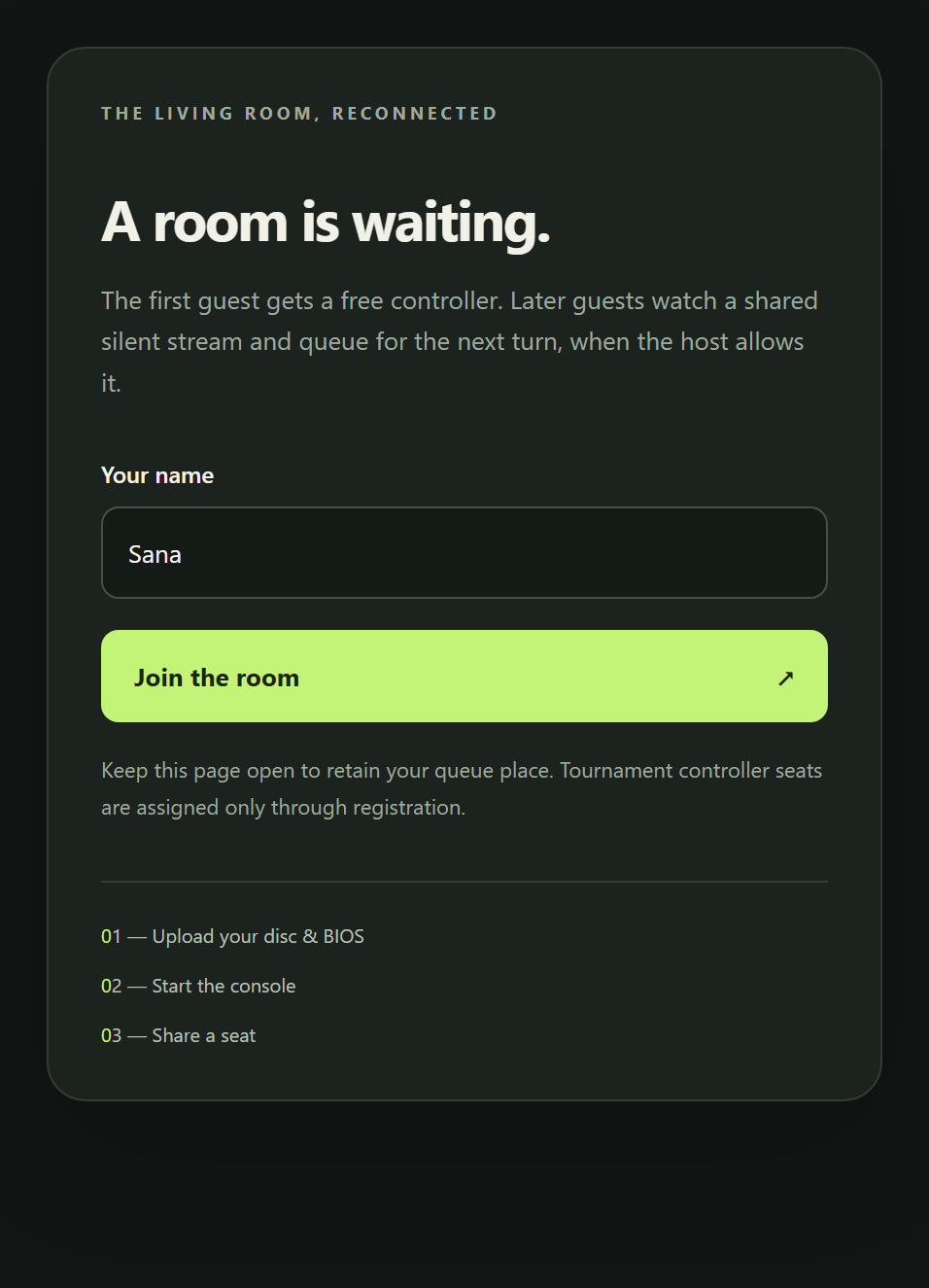
Open the invitation in your browser. You do not need a key or an account. Type a display name and press Join the room.
- If the second controller is free, you get it immediately: the seat label at the top of the room says Player 2.
- If the seat is taken, you watch a silent picture. When the host allows it, you can queue for the next turn (next section).
- Keep the page open. Closing it drops your place; reopening the same link gives you back your role if the invitation is still valid.
Controls, sound and voice work the same way for you as for the host: see sections 6 and 10.
9. Passing the controller
9.1Release, queue, and take your turn
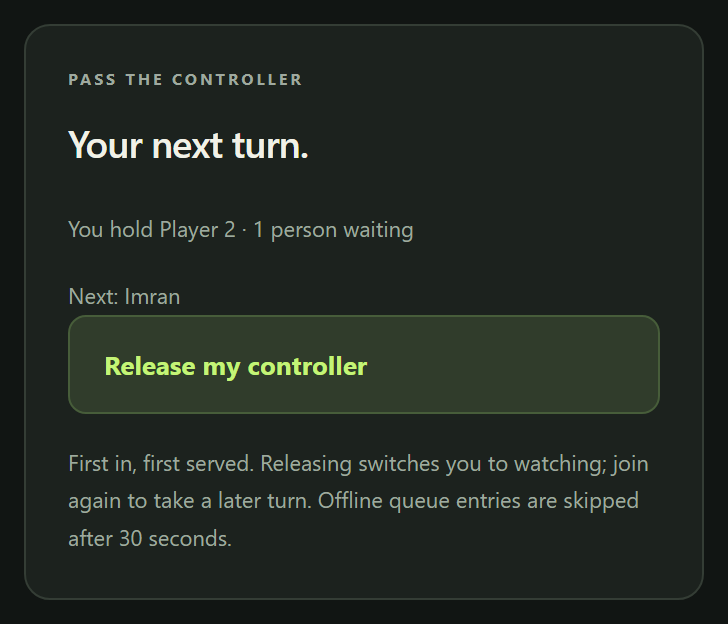
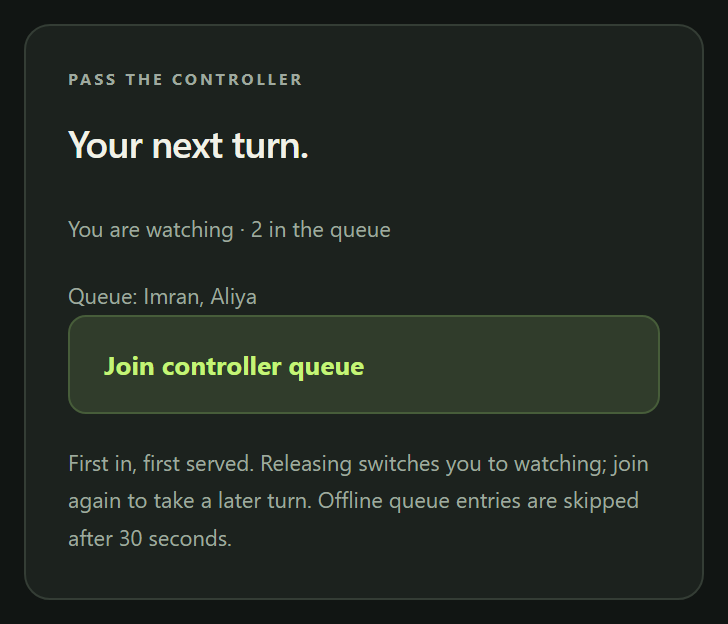
The Pass the controller panel manages turns without ending the room.
- Release my controller hands your seat to the first person in the queue and switches you to watching. You stay in the room and in voice chat.
- Join controller queue puts you in line. First in, first served. If you leave the queue and come back, you go to the end.
- Queue entries that go offline are skipped after 30 seconds, so keep the page open.
- The host keeps room management even after releasing their own controller.
10. Game sound and voice chat
10.1Two separate switches
- Game sound is the Enable sound button under the picture. Off by default; each player switches it on for themselves.
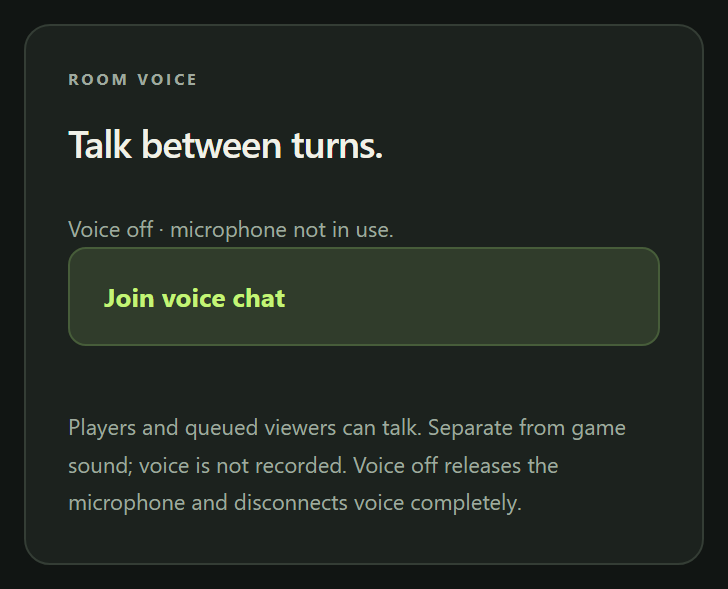
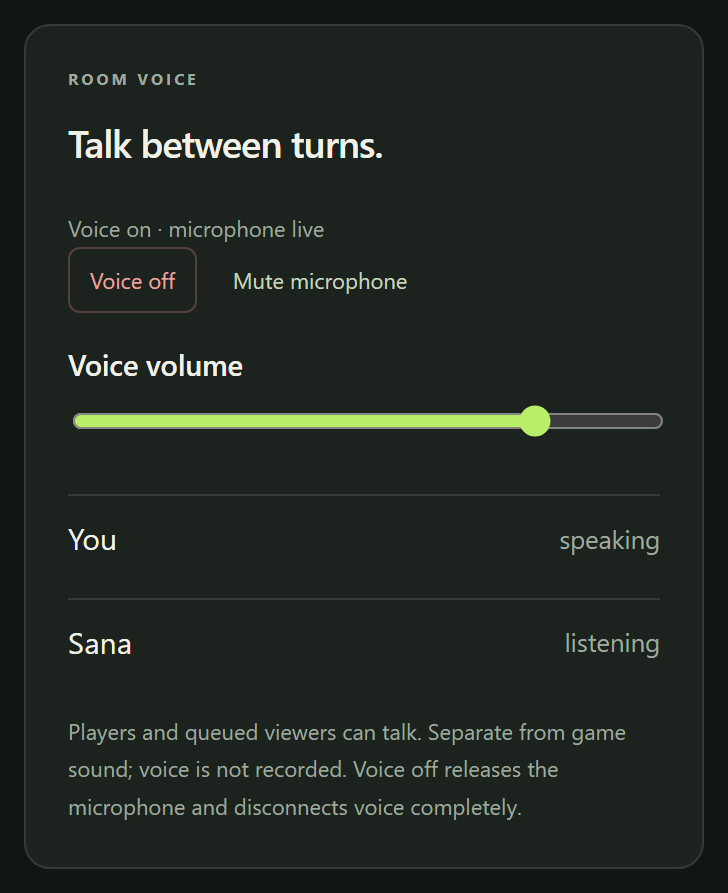
- Voice chat is the Room voice panel. Press Join voice chat and allow the microphone when the browser asks. Mute microphone keeps you listening; Voice off disconnects completely and releases the microphone.
- Players and queued viewers can talk. The host can mute anyone. Voice is never part of a recording.
- Voice uses its own connection. On very strict networks it may be blocked while the game still streams fine.
11. Save states and recordings
11.1Download your save before you leave
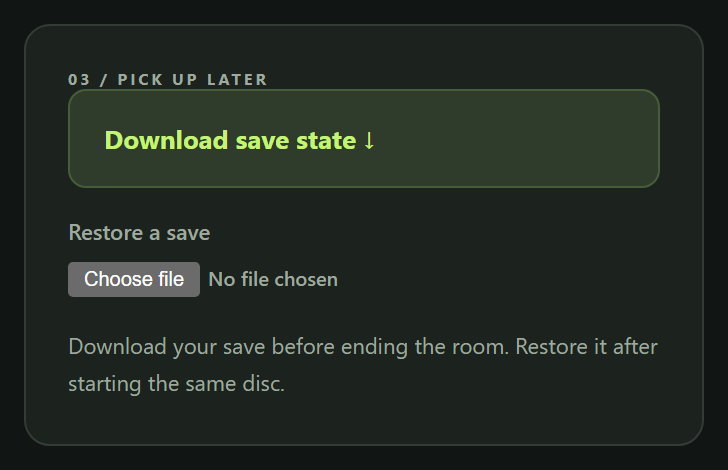
The server keeps no game progress after the room ends (only library files), so use the 03 / Pick up later panel. Download save state saves a PCSX2 .p2s file to your device. Next time, start the same disc, power on, then use Restore a save to pick that file.
- A save state belongs to the disc it came from; restoring it on a different game or after an emulator update may not work.
- In-game memory-card saves live inside the emulator state, so download a state after saving in the game.
11.2Record a clip (host only)
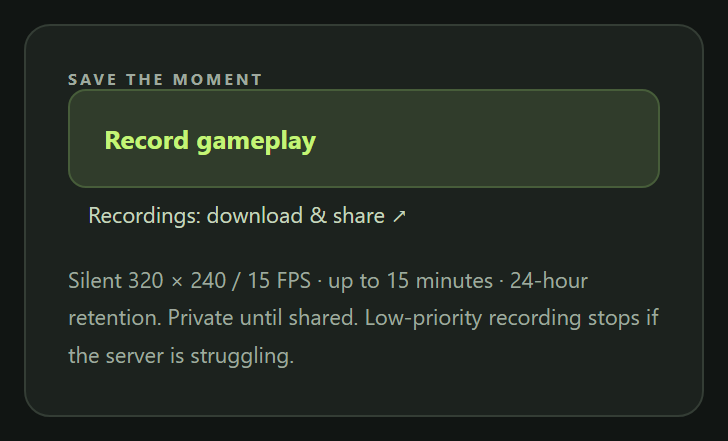
The host can press Record gameplay in the Save the moment panel. Everyone in the room sees a recording notice. Clips are silent, 320 × 240 at up to 15 frames per second, and stop after 15 minutes.
- Find your clips at Your recordings. They expire 24 hours after they were made, so download what you want to keep.
- A clip is private until you create a share link, which lasts up to one hour.
- Only one recording runs on the server at a time, and it stops itself if the server is under strain.
12. Ending the session and limits
12.1End session

When you are done, download your save, then press End session. The console stops, uploads are deleted, invitations are revoked and your key is free to use in another browser. If you forget, the room ends by itself at the limits below.
| Limit | Value |
|---|---|
| Rooms on the server | 1 at a time, with two controller seats and up to 4 viewers (host's choice, default 2) |
| Room lifetime | 2 hours maximum; ends after 10 minutes with nobody connected (30 minutes while an upload is being prepared) |
| Day pass | 24 hours from generation; one active room; one browser at a time |
| Invitation link | 15 minutes; reusable until it expires or the host revokes it |
| Upload | 4.7 GB per disc, 128 ZIP entries; deleted when the room ends unless kept in your library |
| Library | 12 items / 8 GB per email, passphrase-protected, removed after 45 days unused |
| Stream | 480 × 360 default (host can choose 320 × 240 or 640 × 480), 30 or 60 fps cap; HTTPS fallback stays 320 × 240 |
| Recordings | Silent, 15 minutes each, kept 24 hours, share links last 1 hour |
A server restart ends every room without warning; that is another reason to download save states as you go.
13. Tournaments
ps2.zooshan.com/tournaments lets an organizer run a bracket on one console. As a participant: open the event link, register a public display name (no email or password; your place is tied to this browser's cookie for up to 30 days, so use the same browser), and wait. When your match is called you will see Enter your match; the two selected entrants receive the two controller seats. Results are confirmed by the organizer by hand.
As an organizer: unlock the tournaments page with a hosting key, create the event (title, game, rules, capacity 2–32, single elimination or round robin, best of 1/3/5), share the link, close registration to generate the schedule, prepare the console with your own game, call each match, confirm scores. One match can be live at a time.
14. Troubleshooting
“Unlock hosting” says the key is wrong or already active
The email must be exactly the one you generated the key with. If the key is in use in another browser, end that room or open /keys/ there and press Release key from this browser. A day pass also stops working 24 hours after it was generated.
The room slot is taken
One PS2 room runs at a time. The slot frees up when its host ends the session or the room hits its two-hour limit. The status on the home page updates live.
The game runs slowly
PCSX2 runs on a CPU-only server, so demanding 3D titles can fall below full speed; the percentage in the corner of the picture is the emulator’s own speed, separate from your network. Keep fast boot on, leave widescreen patches off, and prefer the 480 × 360 profile. Lighter and older titles run best.
My upload was rejected
Check the format table in section 4. The usual causes: a CUE uploaded without its BIN tracks (zip them together), a ZIP with folders or another archive inside, a BIOS file that is not a real PS2 ROM dump, or a disc over 4.7 GB.
The picture stutters or feels late
Look at the status line: if you are on the HTTPS fallback, press Retry fast connection. Move to Wi-Fi or a cable instead of mobile data, close other downloads and video calls, and turn voice off if you do not need it. The round-trip number is your own network; the other player's can be different, and the server does not equalize the two.
I hear nothing
Press Enable sound under the picture; browsers only start audio after you click. Check the tab is not muted. Voice chat is a separate Join voice chat button.
My gamepad is not detected
Press a button on it after the page has loaded, and click once on the page. On some browsers a controller is only announced after input. If it still shows “Keyboard ready”, use the keyboard map or touch controls.
My friend opened the link and can only watch
Someone else took Player 2 first, or the link expired. Press Release player 2 seat to hand it to the next person in the queue, or create a fresh invitation.
Everything stopped and the room is gone
The room reached a limit (two hours, ten idle minutes) or the service restarted. Create a new room and restore your downloaded save state after powering on the same disc.
Your files, your responsibility
RetroDeck Live is an emulator interface. It includes no games and no BIOS files, and it does not share anyone's uploads. Use only files you are entitled to use. Read the privacy and project information for what the server keeps and for how long, and the engineering article for how the rooms work and what they honestly can and cannot promise about latency.